

📝 Introduction
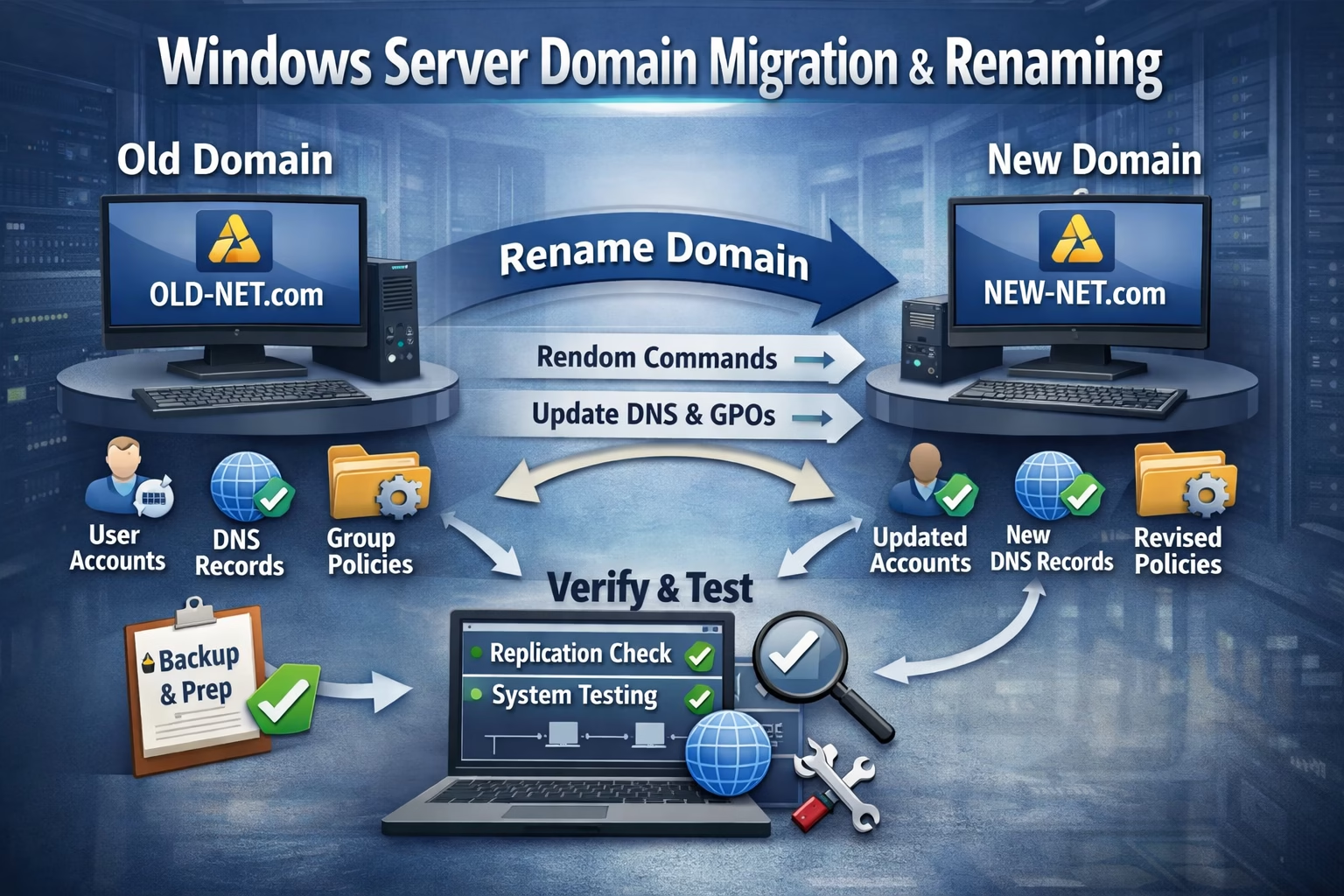
Migrating or renaming a domain name in Windows Server is a high-impact operation that requires careful planning. Whether you’re rebranding your organization, restructuring your Active Directory (AD), or consolidating domains, this tutorial will walk you through the process in a structured way.
01 Pre-Migration Planning
Backup First
Before renaming a domain, ensure you have backups and a rollback plan.
- Backup Active Directory using Windows Server Backup
- Export Group Policies and DNS zones
- Document current domain controllers and trust relationships
- Notify users about potential downtime
02 Check Domain Rename Prerequisites
Domain rename is supported only in certain configurations.
- Ensure all domain controllers run Windows Server 2003 or later
- Forest functional level must be at least Windows Server 2003
- Cannot rename if forest has an Exchange Server installed
- Verify replication health using
repadmin /replsummary
03 Prepare Domain Rename Tools
Microsoft provides domain rename utilities to streamline the process.
Download and install Rendom.exe from Windows Server support tools
- Place
rendom.exeinC:\Windows\System32 - Ensure you have Enterprise Admin privileges
- Run
rendom /listto generate domain list XML
04 Edit Domain Rename Instructions
Modify the XML file to reflect the new domain name.
Open Domainlist.xml generated by rendom
- Replace old domain name with new domain name
- Save and validate XML syntax
- Run
rendom /showforestto preview changes
05 Upload and Prepare Rename
Submit the rename instructions to Active Directory.
Run rendom /upload
- Uploads XML instructions to AD
- Run
rendom /prepareto verify readiness - Check logs for errors before proceeding
06 Execute Domain Rename
Critical Step
Apply the new domain name across all domain controllers.
Run rendom /execute
- Domain controllers will reboot automatically
- Verify DNS zones are updated
- Ensure Group Policies are linked to new domain
07 Update Group Policies and DFS Namespaces
After rename, policies and DFS paths must be updated.
- Use
gpfixuptool to update GPO references - Update DFS namespaces to reflect new domain
- Verify login scripts and mapped drives
08 Rejoin Member Computers
Clients may need to refresh their domain membership.
- Restart client machines
- Run
nltest /dsgetdc:newdomain.comto verify DC discovery - Rejoin computers if authentication fails
09 Validate and Monitor
Confirm the rename was successful and monitor replication.
- Run
dcdiagto check domain health - Verify trust relationships
- Monitor replication with
repadmin - Test user logins and application access
✅ Summary
Renaming or migrating a domain in Windows Server is a multi-step process that requires backups, careful execution, and thorough validation. By following these steps, you can ensure a smooth transition with minimal disruption to users and services.
👉 Pro tip: Always test the process in a lab environment before applying it to production.
Would you like me to also create a PowerShell automation script that handles the most repetitive parts of this migration (like running rendom, updating GPOs, and verifying replication)?
About The Author